
There is an ad campaign in London at the moment for Portuguese tourism. You can see 48-,24- and 16-sheet adverts in the tube with giant portraits of famous Portuguese celebrities (Cristiano Ronaldo, José Mourinho) with a landscape showing through the image. Something similar to this effect that can be achieved with only a few clicks in Photoshop.
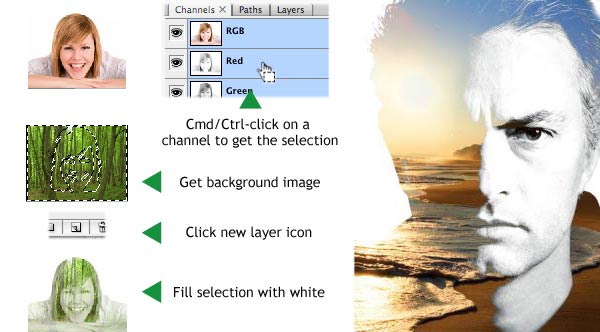
It helps to find a picture, like the one below of José Mourinho, that is lit from the side so half the face is white and the other half black. However, failing that, find a portrait that has a white background. Once the image is chosen, cmd/ctrl-click on either the red, blue or green channel in the Channels palette. This will give you a selection.
Now find your “background” image and paste it over your portrait image. Now click on the New Layer icon in the Layers palette to give you a blank new layer. With the selection still live, fill this layer with white. To do this either go Edit > Fill… and in the resulting pop-up box chose White for your fill (the quick key for this pop-up box is shift-F5) or simply go cmd/ctrl-delete to fill the selection with the background colour (the default background colour is white; to get the default foreground and background colours, simply press D). You knew that!
You may want to copy this white layer (cmd/ctrl-J) or alter it’s opacity.
This is a simple and effective way of putting one image inside another with interesting and eye-catching results.



Interesting, I was able to achieve something similar by grouping the “background” layer to a doctored copy of the “portrait” layer, your technique is a lot quicker, though! Who are you going to be cheering for in the Champions’ League final tonight? (since you’re in London, I guess the obvious answer is Chelsea, but you never know!
Yes, ND, in the image of José Mourinho and the beach half his face is white which means they’ve left that portion of the picture untouched on top. Actually, my method isn’t really the same as that and your way is probably closer to theirs. I’ll amend the article accordingly. There’s always so many ways to do things in Photoshop!
Anyway, no, I won’t be cheering for Chelsea. I’m a West Ham United supporter and we don’t like to see our neighbours do so well. And I think Man Utd play more attractive football. Enjoy the game!
I am a photoshop self learner and I learned a new technique from your blog article and the blogs followed. I like it. Thanks for sharing these information.
No problem, système d’alarme, I’m glad it’s of some use to you.
Hi Rob,
A really simple method, but as per your example shows the results can be pretty spectacular. I’m sure a lot of people will have fun with this one.
Appreciate the guide.
All the best.
Thanks, Aurora Graphic Design, I hope people have fun!
Thanks for sharing this tip. I just try it out on Photoshop and I love it.
This blog let me stay a long time to learn all that new and simple techniques. When I saw the image, I didn’t believe that we can do so in an easy way. Thanks for sharing all your personal experiences.
Wow 🙂 Amazing.. I never thought that it’ll be that much easy.. but yet to try it
Hello Adam, Tom and College Picks. Thanks for your encouragement, I’m glad you’ve found something of use in this website. It is quite easy to do. The difficult part is choosing two pictures to do it with. 🙂 Peace!
hello!
im trying to make an advert poster in which i need to place an image of a gig in another image. to be specific, there are 3 people sitting at a bus stop and i want the picture of the gig behind the people but infront of the wall. how do i do that?
Hi Tim, you need to cut out the people first. Have a look at this tutorial which describes how to design a montage and includes a bit about cutting out.
I tried pasting the second image on top of the original image after selecting it.
I could not do it. Do elaborate. Thank you.
Jacob David.
Hi Jacob, do you have a photo and a selection? Try filling the selection with white? Or masking out the selection by clicking in the “Add layer mask” button in Photoshop? Sorry to take so long getting back to you. Let me know if you still need help.
Hey i just thought id let you know that i used your photo in a short tutorial. I’m kind of new to this so I didn’t want to make anyone mad at me for using their stuff, here’s the link if you want to check it out (gimp not PS)
i can take it down if its some kind of infringement.
http://www.youtube.com/watch?v=9E51mj_Y7JY
Hey E-z, no problem at all, thanks for asking. I think you video is incredible! Very informative, easy to follow and you have a nice friendly-sounding dog! What did you use to make the video?
That is so amazing. It actually showed how easy it is with your method. Im a self taught graphic designer and appreciate your tutorials. Oh and Im enjoying , this is really fun.
Hi Mpilo, I’m so glad you’re having fun. I’m self-taught as well. It’s the only way. Although there are great courses out there. More Photoshop tutorials to come!
wow this looks great image in front of image whats next to come lol
i just want to know how do you put a picture to another picture ? please if you have any answers please write back . thanks
Just copy and paste, Jasmine, and use the Layers palette to edit. HTH.
I need to
know what software to use to put one pic inside another?
Photoshop, Hassan.