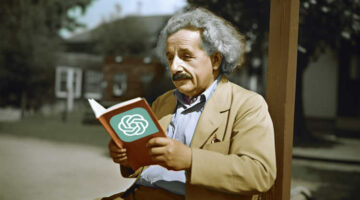
Graphic design an eye
August 8, 2007 – 4:17 pm
This is one way of reproducing a striking image without having to pay for it!
The logical way of doing an image made of dots would be like this: Make sure that your image’s width and height are divisible by 10 pixels (the above is 450 by 300 pixels). Nice round numbers make the following mathematics a lot easier. In Photoshop go Filter > Pixellate > Mosaic… and make you cell size 10 pixels. This gives the “pixellated” effect with each 10×10 pixel square having a flat colour. Save it.
Then in Adobe Illustrator, create a new document the same size as your saved Photoshop image, go File > Place, or just copy and paste the image and move it until it snaps on to the Illustrator artboard (if you have View > Snap to Point checked).
The object of the exercise is two cover the image with circles. Click once with your circle tool and make a circle with a width and height of 10 pixels. Put your first circle in the bottom left corner of your artboard. Two ways of doing this is either by “feeling” it snap there (if you have View > Snap to Point checked) or by making sure you have zero in the x and y co-ordinates in your Transform palette once the bottom left corner of the box is highlighted.
Now there are two ways you could fill the bottom of the pic with adjacent circles. You could either hit Return and get the Move dialog box and put 10 pixels in the Horizontal field, clicking Copy and then going Cmd/Ctl-D again and again and again until the line fills up. Alternatively, you could copy the circle in the bottom left corner to make another one in the bottom right corner and with both selected go Object > Blend > Blend Options… and put 10 pixels in Specified Distance. Hit Cmd/Ctl-Option-B to Make your Blend and the computer will do it for you! You will need to go Object > Expand… to turn to paths.
Use one of these methods to copy the line of circles over the whole of the artboard. To make the circles as “holes” inside another object, simply draw a white rectangle behind the circles (but in front of the placed image) and, with them all (the rectangle and the circles) selected go Object > Compound Paths > Make (Cmd/Ctl-8).
Now what you should have is a flat colour in each circle. However, I was finding this very difficult so what you have here, above, is an image with 10 pixels wide mosaic squares overlaid with 20 pixels wide circles.