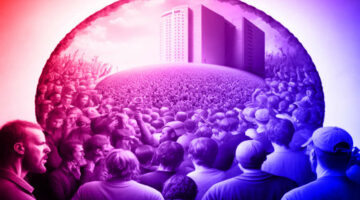
A client of mine was illustrating an article about the World Economic Forum whose annual meeting is usually held in scenic Davos in Switzerland. My client was keen to stress the importance of interconnectivity within both the forum and the wider business community and gave me an image of connected wires of light to marry with the snowy village shot.
To cut out the sky of this pic I adjusted one of the RGB channels. This is a specially useful technique if the area you want to cut out is clearly differentiated by the tones in the picture already – like a figure shot against a white background for example. In these situations you already have a bit of information there that can do the job for you.
Have a look at the channels and select the one which is closest to the black and white mask you want to create – it’s usually the blue channel in RGB. Copy this channel by dragging it to the ‘Create a new channel’ icon at the bottom of the Channels palette. Firstly, create a stark channel of just white and black with no greys. One way to do this is to go Image > Adjust > Threshold… but you may want to use Curves…
This will never be enough to create the cut-out mask in itself but it should be possible to create a channel that closely fits the outline you want. It’ll then be necessary to select the Brush Tool (B) to fill in the areas of white or black as desired. Black hides; white reveals.
When you are happy with the channel, simply cmd/ctrl-click on the channel in the Channels palette go to the appropriate layer in the Layers palette and click the “Add layer mask” icon at the bottom of the palette (it looks like a washing machine). The channel copy will be applied to the layer as a mask.


wow, that image is really cool! i need to try that for sure. Another great photoshop post on something I did not know.
Cheers Rob
looks pretty good. i could apply a similar technique when cutting out the product shots for my site.. hmm…
I just recently did almost this exact same technique with a wireframe sky over our corporate headquarters.
wooooooow great i like it
Thanks, guys, for your great comments!
The effect in the sky is awesome. It looks like a dome overhead or very skilled fighter pilots left their trails. Either way I like it.
Wow, very psychedelic
Thank you for the tips!
Brilliant!
Hey Rob, which site would you recommend me for photoshop tutorials(in between beginner to intermediate level), so that one day, I could do things with graphics like you do.
Thanks,
Jonathan
I’m the wrong person to ask about that, Jonathan, as it was a while since I was at beginner stage with Photoshop. What I found useful was to literally play around with Photoshop with some of my own photos to see what could be done.
It is always a good idea to get a book or two about software you are unused to. There are probably loads of good ones out there. Just go to Amazon and read the reader comments.
And then there’s always forums and blogs on the web that can help you. If you’re stuck just Google it and you may find the answer.
But, most of all I think you can’t beat a good book!
Thanks for your comment, English Dutch Translation Services, more psychedelia to come!
Damn that is a nice tutorial Rob. Looks very good.
I think I will try this later today
Thank you, Multimediedesigner, I hope you got on well when you tried it out!
I did actually. Made a wallpaper for my cousin and he loved it

Thanks again Rob
Cool!
looking good.tnx for the tuts
Really cool and simple trick, thanks
Nada, gracias
Simple little trick to make a cool image even cooler.
Thank you, Jason
A very clever little tutorial .. thank you so much for the share