I moved a WordPress blog to a new server and a new address this week. It was one of those jobs that I dreaded doing but didn’t turn out to be too complicated. And I’ve not lost any traffic!
Why was I moving a WordPress site to a new domain?
A few months back I created a site about WordPress, blogging, SEO, SM and internet marketing. I called it (maybe I didn’t spend too long thinking about this) WordPressSEOMarketing.com – catchy, huh?

It turns out that it is illegal to use “WordPress” in a domain as it is copyrighted. I spent a lot of time trying to decide on a new domain name for the website. In the end, I decided on WPBlogTalk.com.
How to move a WordPress site
Here is a basic synopsis of what you need to do.
- Register the new domain with GoDaddy or Namecheap or some domain name registrar
- Point the Name Servers at the domain name registrar to the new host
- Set up the new domain at the new host
- Copy all files and database (see below) from old site to new site
- Edit
wp-config.phpto have the right database settings and add code for new domain (see below) - Install the Search and Replace plugin to search for old URLs and replace them with the new URL
- Go through new site checking links, etc., change logo and branding, create new email subscription, change any product URLs, etc.
- Add 301 redirection from old blog to new blog
- Change feed URL in Feedburner, set up new Google Webmaster Tools and Google Analytics accounts to monitor indexing and traffic of new site
Now, what could be simpler?
If you don’t count waiting for files to copy, the actual process of moving a WordPress site only takes a few minutes – but you need to spend time checking the new site and changing some superficial elements.
The first three steps of the above synopsis are simple enough. And copying the files is an easy job to do with any FTP client. However, copying a database is always a little more complicated.
If you have Shell (Telnet or SSH) access to the hosts this can be done with one simple command line:
mysqldump -h oldhost -u oldusername -poldpassword olddbname | mysql -h newhost -u newusername -pnewpassword newdbname
This maybe a good option if your database is over 7MB in size. However, I prefer a more “hands-on” approach and migrated the database with PHPMyAdmin.
Exporting a database with PHPMyAdmin
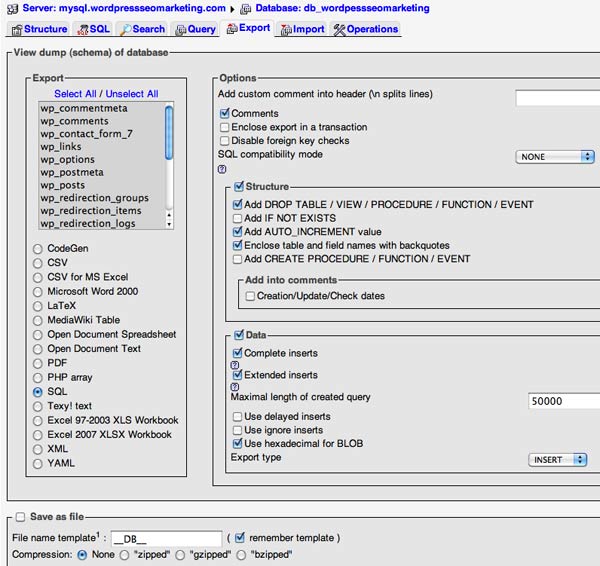
Firstly, you need to export the database from the old site. Once you have logged in to PHPMyAdmin, selected the WordPress database on the left-hand panel and clicked the Export tab on the top right, there are a few options you must set in this page.
Underneath the section marked “Export”, make sure you have clicked “Select All” and in the radio button list below, make sure SQL is selected (this maybe already done when you arrive a the Export page). In the section marked “Structure”, check the box marked “Structure”. Within this section check boxes marked Add DROP TABLE / VIEW / PROCEDURE /, Add AUTO_INCREMENT value, and Enclose table and field names with backquotes. In the section marked “Data”, check the box marked Data. Within this section check boxes marked Complete inserts, Extended inserts and Use hexadecimal for binary fields.
Finally, check the box marked Save as file in the bottom panel and click the radio button with compression as None. Then click Go bottom right and go and get yourself a coffee.
Here is the complete panel to export or back-up and WordPress database in PHPMyAdmin:
This is the same procedure as when backing up WordPress databases. You can get a plug-in to do this for you but as this is for a new WordPress website, I thought it was better to export it this way.
Importing a database with PHPMyAdmin
Secondly, you need to create a new database on the new server and import the database you just exported.
I created a database with completely different name, username and password but you could be clever and create one with the same names and passwords as the old one which would mean you wouldn’t have to change these in the wp-config.php file later on.
In order to import the old database into the old one you need to open PHPMyAdmin for the new database that you have just created.
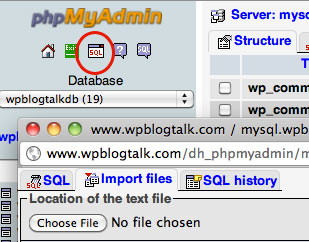
Click the small  SQL icon, select Import Files from the resulting pop-up window, click Browse, select the file from your computer that you’d downloaded from the old site, and then click Go.
Editing the wp-config.php file
If the database imported still has the old website URL in it, you need to add these lines to the wp-config.php file:
define('WP_SITEURL', 'http://www.wpblogtalk.com');

define('WP_HOME', 'http://www.wpblogtalk.com');
I also had to change the database name, database username and password in the wp-config.php file to the settings of the database I’d just created.

At this point you can have a look at the new site and click through a few links. There’s still plenty more to do, though.
Search and Replace plugin
Meet your new friend, the Search and Replace plugin. Install this plug-in on your new site to change all the mentions of the old domain and change them to the new one. There are two places you can do this in the plug-in’s options page. I performed the search and replace in both.
If you search through all your posts now you will find all the internal links and image paths are using the new domain.
Check the site
Have a good look through your new site, checking that all is as it should be. Here’s a few things that I needed to do:
- Change image paths and internal links in the text widgets (for some reason these don’t get picked up by the Search and Replace plug-in)
- Change the logo in the header
- Create a new Aweber list for email subscriptions
- Re-brand e-books offered for download on the site
- Change the download page in Clickbank for a premium product
I actually found that these actions took the most time of the whole process!
Re-direct old site to new site
This step is absolutely essential!
You now have two sites that are identical in content – a bit of an SEO no-no. You need to set up a 301 re-direct from the old site to the new site. Put this in the old site’s .htaccess file – which you will find on the root of the site.
Redirect 301 / http://www.wpblogtalk.com/
That’s all you need! That will redirect any URL in the old domain to the equivalent page in the new site.
Final steps
Finally, I performed these following steps:
- delete the files and database of the old site (keep that all important .htaccess file though!)
- change the feed URL at Feedburner
- set up a new Google Analytics account
- set up a new account at Google Webmaster Tools to monitor how many links are indexed and register the sitemap
- create a new robots.txt to point to the sitemap
- create a new email address for the site and make sure the content form points to it (and forward emails from the old email address for the site to the new one)
Moving a WordPress website from one URL to another
Here is a video I made for your viewing pleasure concerning all the main points of copying files and databases, setting up the new WordPress site and redirecting the old site to it.
You’ve made it to the end of the article now!
I hope that helped someone. Please let me know if you do it differently or if you’ve had a problem with this operation in the comments below. And, if you’ve enjoyed the article, please don’t hesitate to vote for it down below!



Another informative article Rob. As you will know, I’ve done this a couple of times this year by splitting my main blog into 3 URLs. The main issues I faced was importing the databases. They kept going wrong, and only trial and error resolved the issues (the database migrations just wouldn’t complete for some reason).
I still have a few issues with 404s and missing images, but apart from this, all the steps I took are similar to your examples.
Thanks, Andrew. Yes, I had to do the importing of the DB twice before it worked. As you say, it was trial and error. Good to know we followed similar procedures.
So, there’s Andrew Kelsall, DesignSoak and what’s the third?
Great – really great – article. I surfed in from LinkedIn and was very glad I did. I want to move to another host and feel a bit better about it after reading this!
Have you ever moved a Moodle installation?
Hello, Michelle, it’s really not as bad as all that. No, never moved a Moodle!
I’ve just registered by a WordPress backup site (blogVault) which says you can use its automatic restore to simplify migrating a site to a new URL. It would be useful for me to have seen your instructions for people who have this backup.
Oh well, Lydia, hopefully this will be useful for next time! 🙂
I’ve moved to a new domain but lost 80% of my traffic. Why would this happen?
Brad, sorry to hear that. I lost traffic, but only about 20% of organic traffic. Did you do the 301 redirect from the old domain to the new domain?
Thanks for the reply Rob
Yeah i redirected all URL’s from old to new domain
Its taking 24 hrs to add 200 keywords and i have around 8000
I think the PR and Domain authority on the new domain will take time to get back to where i was before the change and then SERPS positions should be the same if not better
There’s no way anyone keeps 100% of their SERPS positions after changing domains
Nice blog. I like the setup, colors fonts etc
I agree with you: you won’t keep 100% of your SERPS positions after changing domains and the PR and Domain authority on the new domain will take time to get back to where it was before the change.
I should post again about how the Analytics compare before and after the change. The site I changed was only 6 months old – I would hate to do this to a 6 year old site!
Thank you for the kind words about my blog, Brad.
I took up a domain about two years ago and today it is ranking well on the google first page for the keyword MBSB and getting lots of traffic in Malaysia.
Yesterday I got a warning from MBSB, a publicly listed company about I should take down my website and domain immediately, because it is illegal to have mbsb in the domain name.
I am now planning to to buy a new domain, say. And then copy and paste the identical content from the old websites to new website. Hence the new website will have almost identical structure content as the old website. Then I will 301 redirect page to page from old website to new website. After that I will delete all the content in the webpage. Meaning the old websites will still have the web pages as before but they are all empty.
Am I doing the right thing ?
Sincerely hope to get some light for the above issue.
Hello Wilee, if you do everything you state in the comment you are doing it correctly.
However you had MBSB in the old domain name and you won’t have it in the new domain. I experienced about a 20% reduction in organic traffic after the move (I’m getting more now). But you will maybe lose more traffic than that as the keyword that was in your domain name will suddenly disappear and Google will notice that.
How much will you lose? I’m not sure. I’m sorry I can’t be more specific.
Simple is simply genuis. Many thanks for making a daunting task so easy.
Wow, thanks, Meron!
Hi Rob, Thanks for the walkthrough, was quite impressed when I found your result in the serps with your Author verified blogpost.
Anyhow, I’ve had to do similar moves after finding a .org where we previously had an .org.uk
Problem there is that moving the WordPress install wasn’t as easy, as hostgator didn’t allow us to create another domain so similar… long story short i have multiple hosting, so had your guide as a “double check”, and all wen’t well.
I opted to just finding and replacing text in the .sql file itself before adding it to phpMyAdmin
In the past I’ve used cloning tools but sometimes it’s nice to do it manually.
Thanks again for the good guide.
Hello Louis, I’m glad you found this guide useful as a double-check. This article tells you how to get your Google author verified face in the SERPs.
I think your way of finding and replacing text in the .sql file in PHPMyAdmin is probably better than mine. Although I’ve used that plugin a couple of times and it seems to work OK. Best advice: make copies of your database before and after doing anything like this.
One more thing to remember: Make sure the WordPress installations are the same version just to be safe.
For sure, Louis. 🙂
Hi there, thanks for the tutorial. really clear for someone like me who’s never moved a website before, never backed up a data base and never even loged into phpmyadmin.
Am having a little problem though at the search and replace stage. I don’t understand it at all but I’ll explain as best as I can.
First off I am moving my site from the root folder of it’s domain to sub domain.
I don’t know if this is causing the complications.
I first ran the search and replace plugin and it didn’t seem to work. I replaced my database with the backup to try again and this time used this search and replace script that was recommended on the wordpress site: http://interconnectit.com/124/search-and-replace-for-wordpress-databases/
Still didn’t work. I investigated a little closer and found the following:
The nav menu and links on my site had been correctly updated.
In the pages section of my wordpress controle pannel the urls of the pages had been changed correctly.
However if I clicked the link or nav menu or even if i went directly to the desired url it would redirect back to the old site.
Puzzled I removed my old site and just put a blank index.php file (with a random line of text) in the root directory of the old sites url. Just as before if I clicked a link or navigated directly to a url of the new sub directory it would still ‘re direct’ to the old domain.
I have no idea what’s going on. I hope I’ve manage to explain it clearly. If you are able to help the old url of my site is http://www.sharmayelverton.com and the new one is http://www.sharmayelverton.com/composer
Thanks,
Sharma
Sorry you’ve been having problems, Sharma. This isn’t the ideal tutorial for you as it’s moving a site from siteA.com to siteB.com but it does follow the same basic principles. First of all, you don’t have to do a find/replace, depending of the size of your site, you could just change the broken links manually. Secondly, have you added the extra two lines to the wp-config.php
define('WP_HOME','');define('WP_SITEURL','');
Also here are a couple of links you may find useful.
http://codex.wordpress.org/Changing_The_Site_URL
http://www.expand2web.com/blog/move-wordpress/
Let me know how you get on.
Thank you so much! I followed the video tutorial and it worked perfectly.
I still have no idea what was going originally but it was clearly unnecessary to create a new database seing as it it was still under the same root domain. Perhaps that had something to do with it.
Anyway, thank you again.
Great to hear you’ve got it all sorted out, Sharma. These things rarely work out perfectly first time. Yes, it would have been unnecessary to copy the database but it’s good experience for next time! All the best. 🙂
Have you ever tried or seen this? http://halty.net
claims to be compatible with wordpress but I am reluctant to try this on my live blog (my goal is to switch from godaddy to dreamhost and I have a new domain at dreamhost)
Dan
Hi Dan. No, I’d not seen that and, like you, I’d be reluctant to try it as well – it’s still in beta. Let me know if you need any help with the “manual” method.
Rob,
I found a way to do a one-click backup in my hosting account, so I guess I can try this halty thing now. If it fails, then I will do it the manual way. Thanks for offering help!
I’d be interested to hear how you get on with Halty, Dan.
Rob,
I managed to make a backup and I will try this tonight. I will let you know how it works out!
That’s great. Can’t wait to hear how you got on.
It actually turned out to be a rather smooth process – I am surprised! Basically it asked my mysql settings on target server and the new domain name and that’s it. I am now going through phpmyadmin and verifying settings in the admin area, but so far everything looks good. I will keep the backup copy of course, just in case.
This is really good to know, Dan, thanks for this. Well done for keeping a backup copy. Let us know if there’s anything else.
Many thanks for this. Worked well.
The only thing I had to do extra was to create a new user with appropriate privileges after making the new database before importing the older files and making sure the users/passwords matched in the wp-config file.
Glad it worked out well for you in the end, Mike.
Hi Rob
Thanks very much for this article. I read the instructions from wordpress first of all and didn’t understand them. Then I read yours and decided to go with you! It all worked really well. The only bit that I had a challenge with was the fact that I had used custom Permalinks on the old website, so I had to refresh them on the new site. Took me a little while to figure out what was going wrong there, but we got there.
Thanks again for your well written and easy to follow instructions
Regards Anthony
Hello Anthony. I know these complicated WordPress procedures can be frustrating at time. Good to know you got there in the end and that this article helped! 🙂 Surprising your Permalink setting didn’t carry over with the database but it just goes to show you have to check everything!
Hey Rob,
I just moved my WP site to another domain with these instructions. I didn’t create new database instead used the old one and pointed new domain to that. Everything seems to work as expected.
Thanks for the nice info.
Thanks for the feedback, Aakash. You should be able to use the same database as long as you are staying on the same server and as long as all the details in wp-config.php all match up. Glad the article helped a bit.
Thanks a lot for this very informative post Mr. Rob. It really helped me. It was my first time to transfer a site to a new domain so I searched to Google a bit. I’m glad I found this post. Thank you again! 🙂
No problem, Rachel, I’m glad you found it useful.
Hi Rob,
Tonight I had to move a WP site to a new server and url. As part of research I found this post and decided to follow your instructions.
Wow – so straightforward and well explained. One seamless move followed and I am very grateful.
Very good article.
Thanks,
Dave
Hey, Dave, that’s great that it helped you. 🙂
Hi Rob,
Thanks so much for this. It makes it look easy and doable. I am hoping for you advice on one point. I’m re-branding. On my current account (my domain has been up and running since 1997), I have the option of either adding a new domain to my account, or, according to tech support, I can replace the primary domain with the new one I want to use. I’m not planning on hosting anything on the old domain at this time…just forwarding it.
What is the better option logistically and traffic-wise…
1. Leave everything where it is and swap out the old primary domain for the new? (although I would want to rename the folder where WP is installed)
2. Set up my new domain as an account add-on (1 cpanel for both domains) and move WP over?
3. Set up a new account for the new domain and move everything over there?
Now that I think about it…I do have other things installed on my current site (like my shopping cart) that I want to continue using on the new domain. What do you suggest? Thanks for your help.
Hello Antonia, welcome to the site. Just so I understand your query to summarise: you have domaina.com which is a fully functioning website with a long history and shopping cart and you want it to become domainb.com and have domaina.com redirect to it?
If so, I would say both numbers 1 and 3 are good options. Number 2 isn’t. Number 1 is less work (which is always attractive in my book!). Number 3 is more what I did in the video above. However, if while talking to your host you find out that Number 1 is possible then I’d go for it. Make sure you try to get the most help out of your host as you can and copy everything before you start!