There comes a time when you have to fly the nest. Leave the safe but structured environment of your WordPress.com site for the freedom and responsibility of owning your very own self-hosted WordPress.org site.

What is the difference between a WordPress.com site and a WordPress.org site?
Having a WordPress.com site is like renting an apartment – you can live in it for a while but it’s not yours and you can’t do what you want with it. Having a WordPress.org site is like buying a house – it’s your place and nobody can tell you what you can and can’t do with it.
Anyone can head over to WordPress.com and set up a site within seconds. Everything is taken care of for you: setup, upgrades, spam, backups, security, etc., and it lives on an almost-indestructible cloud environment.
However, if you head over to WordPress.org you can actually download the software that powers WordPress and upload it onto your own webhost and use it as you see fit. However, you need to spend money on a host and do the setting up, backing up, upgrading, etc., yourself.
If you are serious about your blog or website, you really need a self-hosted WordPress.org solution. With WordPress.org you can do anything you want to your site. You can change it’s design by loading any theme you want, increase functionality with any plugin you like and customize it pretty much anyway you want.
How to migrate from a WordPress.com site to a WordPress.org site
Here is my tutorial video where I change name servers, set up WordPress, export from WordPress.com and import to a WordPress.org blog.
Here’s what you need to do:
- Get a domain name (try GoDaddy, NameCheap or 123-Reg) – it is possible that you already have this if your WordPress.com blog is www.something.com rather than www.something.wordpress.com
- Get a webhost I would recommend Hostgator, Bluehost or, my current host, Dreamhost
- Export your posts, pages, comments, custom fields, categories, and tags in a file to your computer (XML file)
- Change the name servers at the domain name registrar
- Set up WordPress at your new host
- Import the file you just exported from your WordPress.com site to your new WordPress.org site
- Customize your installation with all the lovely new themes, widgets and plugins you can get your hands on!
Get a domain name
Your domain name is the bit that goes after the www. You need to register this and it costs about $9 a year. I used to recommend GoDaddy as it is the cheapest. But NameCheap sells for exactly the same price or 123-Reg).
It may be that you already have purchased a domain name for your WordPress.com site in which case the name servers will be ns1.wordpress.com and ns2.wordpress.com.
Get a webhost
If this is your first time looking for a host you need to get a good shared hosting service for WordPress.
I would recommend Hostgator (fantastic value and good support), Bluehost (as per this example) or, my current host, Dreamhost. This will cost you about $70 a year.
You should get from these hosts the names of your name servers. In our example for Bluehost the name servers are ns1.bluehost.com and ns2.bluehost.com.
Export XML file at WordPress.com site
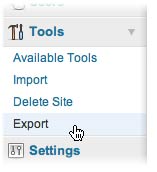
At your WordPress.com site, go Tools > Export (choose the free option!) and then choose what you want to export. I exported everything: my posts, pages, comments, custom fields, categories, and tags into a WXR file or, WordPress eXtended RSS file, basically an XML file specific to WordPress.
Change the name servers
Change the name servers at your domain name registrar. So whether you use GoDaddy, Namecheap or 123-Reg, you need to head over there and fill in the name servers you got from your webhost.

They usually say that this change takes 24 hours to propagate through the system. In effect this usually takes only an hour.
Set up WordPress
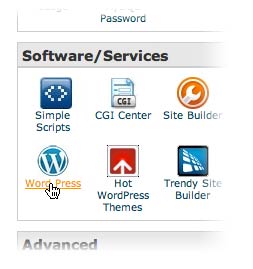
Once the name server change has taken effect, install a new version of WordPress at your new site.
In our example, Bluehost (as well as most other hosts) have a very simple one-click install of WordPress.
Import XML file at WordPress.org site
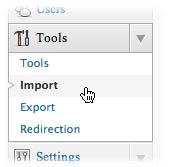
And then, log in to the back end at your new WordPress self-hosted site and navigate to Tools > Import. Click the WordPress option, install the importer and upload the XML file you just downloaded.
Themes and Plugins
You may like to keep a note of any functionality that was added to your WordPress.com blog that won’t be carried through on the XML file (things other than posts, pages, comments, custom fields, users, categories, and tags).
For example, you will have to download and reactivate the theme you were using at WordPress.com to make your new blog look the same.
And you may want to install and configure Jetpack and other plugins to provide features that you had been using on WordPress.com. If you have comments enabled, the Akismet comment spam protection plugin is virtually a must.
Redirection
Maybe you have a lot of content that ranks well in your old WordPress.com site, the new site would lose all that value as the URLs will all be different.
If you would like to redirect the old URLs at yourblogname.wordpress.com to new URLs at yourblogname.com, WordPress.com does this for a fee of $12/year.
What about you?
Have you ever had to move a WordPress.com blog into a WordPress.org blog? Has this been useful for you? I’d love to hear your opinion in the comments section down below. Or you may like to Tweet or Like the post!



Thanks Rob, I was wanting to make the change to wordpress.com to wordpress.org but didn’t know how. Very helpful!
Glad it helped, Joann. You can do so much more with dot org.
Hi Rob and thanks for the video/explanation. I’m probably going to migrate over to .org soon so it was useful to see the process involved.
Thanks, Jose. Best of luck with the move. And, you’ll never regret migrating to a self-hosted .org site. Much more flexibility and control. 🙂
hey did u already haved payed the 12 $ on wordpress before u maked all this process??? cause i changed the nameservers at godaddy to bluehost names and the web still redirect me to wordpress, maybe i got to cancel the domain at wordpress… ???
Hello George, I don’t understand what you’re saying about paying $12 to WordPress but all you need to do is change the Name Servers at the domain name registrar (GoDaddy), and wait, and then the domain should direct to the new host. It shouldn’t matter what happens at the domain’s old host. Let me know how you get on.
ok the thing is that i payed at wordpress.com for the domain mapping… so i still got the domain at godaddy but i got it mapping on wordpress.com, i changed the nameservers at godaddy to the bluehost server names like u told on the video but when i go to my page it is still redirecting me to wordpress page and i think is because i got my domain registered at wordpress, im really confused men,
According to Who.is the site ladkanimportz.com has the name servers set to Bluehost. http://who.is/dns/ladkanimportz.com/ – which is what you want. What appears at this domain now depends on what you have set up at your Bluehost account. I don’t understand what you mean by “it is still redirecting me to wordpress page”. It’s not re-directing as far as I can see. Let me know exactly what you want to happen.
ok i just want to move the wordpress.com to .org but i did everything as you see the nameservers and all , in bluehost i installed the wordpress scripts and all… but when i log in to wordpress i still have the wordpress.com dashboard… and i want to use my own theme and have all the control of my page that the wordpress.org got.
How are you logging into WordPress at – when I go I see the WordPress.org log in, not the WordPress.com one.
ok ROB im gonna tell u something ime really serious about this this is my life men!!!! and the thing i want to TELL YOU IS THAT !!!!!! i really really aprecciate the help u have given men! lol lol i just solve it , it was things with the safari cache and restaring safari and computer! lol
HEY WAIT! but now i got problems cause the link that u went that you said that you see the .org login , if i dont reset safari it redirects me to the .com login when i clik it… strange
I think it’s just a caching issue. This will always take you to your .org Dashboard or login.
I apreciate the help boss… but even that link wont 🙁 ahhh frustating
when i click activate to activate a theme is login out and throwing me to .com login!
Re-start and try a different browser.
When you say go in the back end of the new WordPress.org. How do you do that? I am so confused at that part. I did the bluehost thing and one clicked installed WordPress. When I click the admin link to update things it keeps taking me back to wordpress.com versus .org. Is this because the nameservers haven’t propogated yet? It has been 3 hours. So frustrating. Thanx!
Sounds as though the nameservers haven’t propagated yet, Romeo.
Thanks, very thanks; good & simple explanation.
Thanks, Manuel.
Rob, thanks for the tips. Question — I’m finishing up the design of my new site before I throw the switch. So right now I’ve got two WP blogs — the .com version and a mirror .org.
BTW, people need to be told about the very frustrating 2MG limit on importing. Killed a lot of time before I found a nice XML snipper to cut the file size down.
When I’m ready, do I still need to mess with DNS settings? My site is already “live”, hosted at Yahoo. When I’m done I plan on making it my index page. I do know I’ll need to pay WP.com to forward the URLs.
Thanks in advance.
I’m sorry, Chris, I don’t understand the question. I don’t know what you mean by “throw the switch”. Is your “mirror .org” a copy of your WP.com site that you wish to use from now on? Then yes, you have to change the nameservers from WP.com to the nameservers of whatever host you are using to host your self-hosted WP.org site (Yahoo?).
There is a limit of around 7 or 8 MB on importing databases through PHPMyAdmin but large databases can be imported through Shell. I’ve never heard of a 2MB limit but that may be specific to your host.
I hope this helps.
Rob — sorry I wasn’t clear. Trying again:
My domain chrisparente.com was never associated with my WP.com blog, which is hosted in the cloud. Totally separate entities, which is why I’m looking to centralize via a self-hosted site.
So my question is, why do I need to reset name servers, when they never pointed to WP.com in the first place? Thanks.
No problem. I think I understand now. You have already successfully copied the blog to http://www.chrisparente.com/blog so, you’re absolutely right, there is no need to change any nameservers because you are giving the old WP.com site a new domain name.
Yes, finish finalising the design and then move it from http://www.chrisparente.com/blog to http://www.chrisparente.com and pay WordPress to do the redirects. (You could do that now as you have duplicate content but I shouldn’t think it matters as it will only be for a short time).
Sorry for the confusion. Please get back to me if there is anything else.
Hi Rob — closing the loop here. I had major issues at the 11th hour due to some really poor support from Yahoo, they make some WP functionality impossible by blocking access to the htaccess file. I fled for Bluehost. Check out http://chrisparente.com
It’s not an easy process to switch, but there are lots of good sources of info out there, like this thread. Thanks again.
Well done, Chris, thanks for closing the loop. The site looks great and loads quickly. I’m afraid Yahoo may, like GoDaddy, have been an unfortunate choice for shared hosting. But you’re certainly in good hands at Bluehost. Best of luck with the new site and let me know if you have any questions about WordPress.
Rob,
THANK YOU SO MUCH FOR NOT ONLY THIS POST BUT ALSO THIS VIDEO!!! SO, SO HELPFUL!! As soon as I paid for BlueHost and logged into my new B’Host account, I immediately felt overwhelmed. What was described on BH in a very complicated way for WP.com to WP.org transfer was made MASSIVELY more clear by your post and video.
Thanks much!
Caleb
My pleasure, Caleb.
You would change the name servers before you exported your content??
I would think that once the nameservers are changed towards the new hosting, that you can’t even access the old site anymore…
?
(I’m going to do this, but will export first.)
Good point, Tom. I can’t think why I put it in that order. However, the nameserver change will always take 12 – 36 hours to percolate through the system so as long as you do everything straightaway you should be alright.