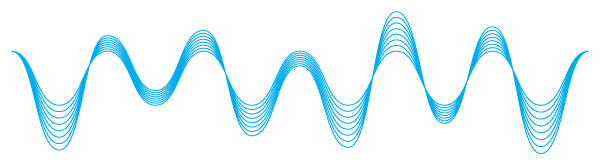
This is a nice little trick using Illustrator’s Blend option.
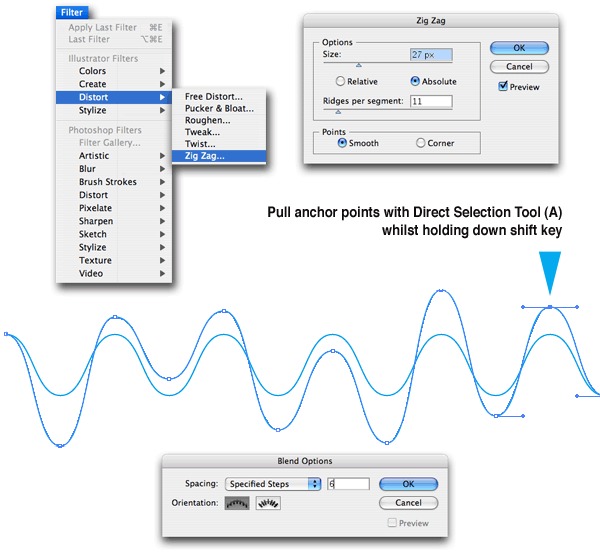
To create perfect sine-waves – or something very close – first of all, draw a line. Then go Filter > Distort > Zig Zag… and choose the number and height of waves you want (remembering to click the smooth radio button, otherwise you’ll get a zig zag).
Once this is done go Object > Expand Appearance to turn the wavy line into a proper vector.
You then need to copy this beautiful wavy line and create a distorted version on top of it. To do this simply copy (Cmd/Ctrl-C) the wavy line and paste in front (Cmd/Ctrl-F). Put one line on a locked layer and, with your Direct Selection Tool (A), drag the peaks and troughs of the curves either up or down randomly. See below where the blue triangle is.
Then unlock the original wave and go Object > Blend > Blend Options… and select the number of Specified Steps you want. Then, with both selected, go Object > Blend > Make (Cmd/Ctrl-Option-B).



If find there are no anchor points on your zigzag, then select it and go Object > Expand Appearance.
Very good point, ant. As with a lot of Illustrator effects, such as brush effects, Object > Expand Appearance will turn the effect into vector. Thank you.
Interesting Blog!! needed help with this about 2 months ago to bad i just found the blog
you’re so full of neat tricks and tips Rob I may have to create a perm link to your tutorials on my site when it’s up and running
Links are always gratefully received, aliput!
Hi there,
Thanks for the the tip. I was able to do everything but when I get to the last option (Blend > Make), I get a really nasty zig zag across and it looks like a black splatter. It makes no difference if I tell it to take 1 or 20 steps.
Hello, Visualocity MD, make sure your two sets of curves are spaced enough apart for the number of steps, also, as per the screenshot, make sure you specify the correct type of blend first. Other than that, I’m not sure.
I had this same issue until I realised you have to expand appearance of BOTH lines : /
very useful tips but can I make the peaks and troughs of the curve regularly spaced?
cartojb, the peaks and troughs of the curve are regularly spaced, do you want them irregular?
awesome! exactly what i needed.
ZigZag with smooth – of course. That’s such a brilliant solution. Spent ages with ‘Wave’ on the effects panel attempting to get a sine wave-y effect. This was exactly what I needed. Thanks for sharing.
Glad to be of help dorinda and Alex, this article is quite popular for people Googling “how to draw a sine wave in Illustrator”!
Thank you!
Brilliant stuff,
what a lovely effect..many thanks for sharing your tips and advice 🙂
To achieve this effect you will need to Expand this wave to an object in order to manipulate its anchor points one thing the author forgot to mention.
Thanks, Peter, I have amended the post now.