
Here, as promised, is a short tutorial about creating montages. Here is a montage of three different images which gel together without having to laboriously cut anything out.
Layer masking with a brush
I sized the cityscape image over the picture of the girl and played around with layer blend modes until I chanced upon one that seemed to do the trick. It’s Color Dodge at 88% opacity.
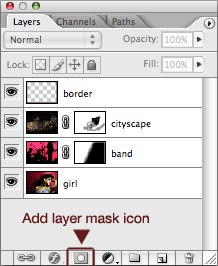
Then I needed to get rid of some of the building’s lights from her face. The way to do this is to create a layer mask. In the Layers palette, simply click on the Add Layer Mask icon. It’s at the bottom of the palette and looks a bit like a washing machine (see below).
When you’ve done this a white rectangle will appear adjacent to that layer and, when you’ve selected the Brush Tool (B) your foreground colour will be black and you’re ready to start editing the layer mask.
When the layer mask is white it is unmasked and black is masked. So “painting” on the layer mask with a black brush will “erase” areas of that layer. Use a soft brush and play around with opacities.
Notice when you’re editing the layer mask and when you editing the layer itself. The rectangles will have thicker borders in the Layers palette to show you which. Click on a layer’s mask and your are editing the layer mask (foreground and background colours are the default black and white). Click on the layer rectangle itself and your are editing the layer (foreground and background colours revert to the colours you had there).
Layer masking with a gradient
Then I overlaid an image of a band. I wanted the left-hand side of the image to show the drummer and the right-hand side to show more of the girl.
Same technique as above. Click on the Layer Mask icon in the Layer palette to give yourself a blank layer mask. Click on the Gradient Tool (G) and drag (in this case horizontally from right to left more-or-less in the centre of the image) where you want your gradient mask. You can do this as many times as you want to get the right effect (no need to Cmd/Ctrl-Z).
This band layer is set to Lighted blend mode at 50% opacity.
Adding a border around the image
Add a new layer (Cmd/Ctrl-alt-shift-N). Select all (Cmd/Ctrl-A). Go Select > Modify > Border… add a value of, say, 5 pixels. You may want to feather it a bit. And fill it with a dark colour from the image.
Here is the layers palette for the finished image.



Thanks for sharing these photo montage tips! I found it very useful. I became your rss subscriber.
Thank you for your kind words, Mike. I hope to write more tips, especially after Christmas when I’ll have more time! Thanks for subscribing!
Wonderful tips and very helpful for a beginner like me. Thanks a lot =)
You’re welcome, Mimi!
Thanks a lot. It’s really helpful for my folio design!
You’re welcome, chong!
I like the way you explain things. I’m a beginner in working with photoshop and therefor I’m always searching for good tutorial to improve my skills. Thanks a lot!
Glad you learn something here, Johannes.
Would it be possible to make the PSD available to download? It makes things much easier for the likes of us newbies 🙂
Hi John Pash, I can do that if you want. Let me know.
Excellent article !!! I’m always learning !!!!
I’m glad, Luis, it’s good to learn.
its a kl picher
thk u, jacool333
I found another video tutorial about design a montage… will posted at my blog soon…
OK PS Slave, let us know when the video tutorial about montage is there!
Quick and easy tutorial, I really like the end result.
-Ben.
That’s great, Ben, glad you liked it!
it’s really good work and easy to understand what does it say , to be honest i didn’t believe that is gonna work
Thanks for a lesson. Result wonderful.
What version Photoshop is this?
MiTz this would work with almost any version of Photoshop that people use today!
i need somone to teach me photography and would be great if its somone who took this pic and would be great if he / she is in malaysia please if u r interested in teching me reply as soon as possible
Dear Rob,
I think it’s outstanding photo montage. I am a newbie and I have been trying it but still failed. Could you give the psd file? Or, could you give the link, I will download by self.
Thanks in advance…
Best regards,
Rudi
Hi jehan, I’m afraid I don’t live in Malaysia but I’m sure you’ll find great information on the internet.
Hi Rudi, I’m afraid I can’t find the PSD but there should be enough information there for you to do it. If not, let me know what version of Photoshop you are using and what the problem is and I’ll see if I can help! Good luck!
It seems easy i love montages and i will tray to do it thank you for sharing!
Hello, Zabava, it is easy. Let us know how you get on.
I’m late on this but thank you for the tips
hello thank you…
What a great tutorial! Thanks for explaining the different blend modes in your process.
Glad it helped, Vincent