
This starts, as most tutorials start, with something very easy: draw a circle. So, select your circle tool and drag diagonally to preferred size, not forgetting to hold down the shift key. Fill the circle white, with no stroke.
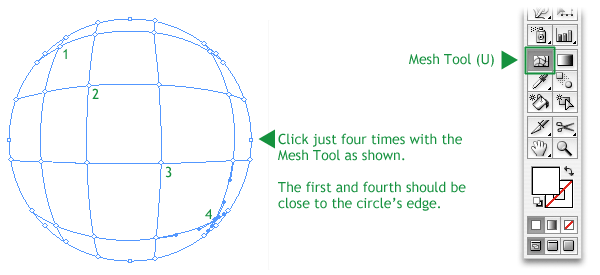
Next, select the Gradient Mesh Tool (U) and click four points diagonally across the circle. Make sure the first and fourth click are close to the edge of the circle and the middle two equally separated – this is the basis of a 3D effect.
With gradient-meshing (if I could invent that verb) it definitely is a case of less is more; those four clicks have given you 32 different mesh points for you to colour in. Don’t worry, it’s not going to take you as long as you think!
Start selecting the gradient mesh points around the edge and give these a dark green colour. Select the point first with your Gradient Mesh Tool (U) and then choose the colour in either the Color palette or the Swatches palette (or you could select the colour from the image above, once dragged from your browser to your Illustrator document, with the Eyedropper Tool (I)). Notice I have made three of the points a darker mauve colour.
Inside the circle make the gradient mesh points a lighter colour. Leave two of them near the edge white for the highlights.



Nice – don’t suppose you want to put a link to download the zipped .ai file for lazy people like me!
Good suggestion, Dan. Have emailed you said .ai file. Cheers!
Can you send me this AI file too.
Thanks.
Done
This is a very nice tutorial. I have followed it step by step and got the result I desired. I love to create 3d designs and I’m starting to master it. Thank a lot for this post. Keep it up.