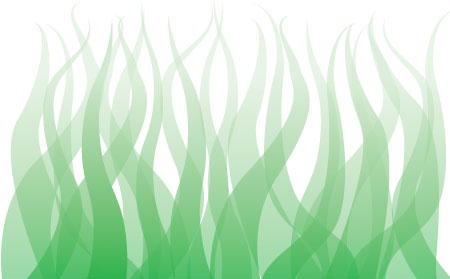
You can use this tutorial to make weeds or grasses swaying in the wind as above. Or colour them orange, yellow and red and you’ve got flames. They are also a useful decorative feature that seems to be quite common these days.
Start with a line…
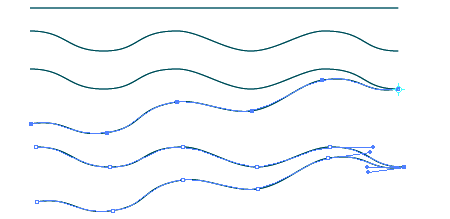
Go Filter > Distort > Zig Zag, or Effect > Distort & Transform > Zig Zag, and check the preview box so you can see what you are doing. The one above has 10px size, Absolute, 4 Ridges per segment and Smooth Points, but it’s up to you.
So you have your wavey line. Copy it (Cmd/Ctrl -C), Paste in Front (Cmd/Ctrl -V), and select the Rotate Tool (R). Now click on one of the ends of the wavey line and drag the other end up or down a bit (see above).
Now you have to connect the two lines so you can apply a fill. With your Direct Selection Tool (A) select the two end points in the apex by dragging a select over them so they look like the last example above. Then a simple Object > Path > Join (Cmd/Ctrl -J) (select Corner, of course) and you have your shape. Finally, add gradients and transparencies.



Great. Very helpful.
Thank you, Ben, you’re very welcome!
AHHH- Thank you!
No problem, Carrie
awesome, thank you!!
When i transform & distort the line it does not have anchor points? The straight line i drew is just to the left.
Try Object > Expand Appearance with it selected.
Thank you so much for this info! I was having the same problem as Jessica. Now, I am off to make some waves!! 🙂
Awesome!
Many thanks. The directions were concise and effective.
Thank you, Jasbir, I’m glad you found it easy to follow.
Great! I was hoping there was an easy way to make waves. Now, I wonder, how can you make waves that degrade – like it starts off big and goes down in amplitude. Any clues? Good tutorial.
Glad you liked it, Tien. Have you tried the Free Transform tool to make them degrade?