
One of the ways WordPress can be made to act like an all-singing, all-dancing CMS is with custom page templates. These give you the ability to make any page on your website look and/or function differently to all the others. Here I’d like to explain how you make a custom page template for Genesis.
Genesis is a premium theme framework for WordPress which I now use to build all my websites on. I do this because it has many cool functions and effects coded already that I can just pick and tack on to whatever kind of website I’m building.
Custom pages in WordPress
Creating a custom page template is super easy in WordPress. You simply copy your theme’s single.php file, call it something different like, ft-home.php, add the template name at the beginning of the file – using a text editor such as Notepad (Windows) or TextEdit (Mac) like so:
<?php /* Template Name: FT Home

*/ ?>
… and you can add or take away anything you want so that when you create a new page and choose the template you’ve created in Page Attributes (see below), it’ll appear differently to all the other pages.
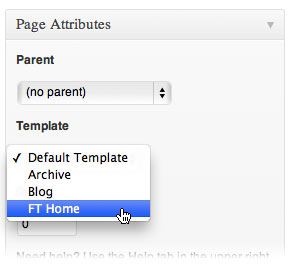
But with Genesis you make child themes, so it’s slightly more complicated as we don’t have a single.php to copy. So I’ll go into it in a bit more detail.
Custom pages in Genesis
Below you can see two page layouts. On the left you have a standard blog template with a sidebar and on the right you can see a custom home page with no sidebar, a strip of images across the top and a jQuery slider next to the content.

Here is a video of me (stumbling and stuttering through) making a custom page template in Genesis.
An added benefit of creating a custom page for this page is that the tricky code to create the strip of images and the jQuery slider can be hidden away from the client in the custom page template, while the main text could be edited within the WordPress page editor as normal.
To create your custom page template in Genesis, open a new text document in Notepad (Windows) or TextEdit (Mac) and copy this code:
<?php /*

Template Name: FT Home (change name as you see fit)

*/ ?>
<?php get_header(); ?>
<?php genesis_before_content_sidebar_wrap(); ?>
<div id="content-sidebar-wrap"><?php genesis_before_content(); ?>
<div id="content" class="hfeed"><?php genesis_before_loop(); ?>
<?php genesis_loop(); ?>
<?php genesis_after_loop(); ?></div><!-- end #content -->
<?php genesis_after_content(); ?></div><!-- end #content-sidebar-wrap -->
<?php genesis_after_content_sidebar_wrap(); ?><?php get_footer(); ?>
… and save the text file as your template’s name with .php on the end.
(I totally stole the above code from How to create a Custom Template In Genesis by Christopher Cochran.)
This file should then sit in your child theme’s directory next to the functions.php and style.css. Then, same as with any other WordPress page template, you can choose the template on a page-by-page basis within the Page Attributes section when editing a page in WordPress.
I added all the extra code in before the <?php genesis_before_content(); ?> line. But, as you can see, you can add content before or after the header, before of after the loop, before or after the sidebar or before or after the footer.
With Genesis you also have the added benefit of being able to choose a basic layout on a page-by-page basis, in this case I choose a layout with no sidebar:

But what if I want more differences in the custom page template?
OK, maybe you’re thinking this isn’t quite as flexible as all that. What if you want to change something within the header, put something else in the footer or mess around with the heading in some way. Well, don’t worry! You can do anything you what with Genesis child themes by way of the functions.php.
So, for the example above, I needed to put something in between the heading and the content on the page, I actually entered the HTML of the heading in the custom page template so it would appear in the correct place. That done I needed to get rid of the page’s heading that would have been spat out by the template as it stands.
To get rid of the heading from this particular custom page, I put this in the functions.php:
add_action( 'template_redirect', 'child_remove_my_template_page_title' );

function child_remove_my_template_page_title() {

    if ( is_page_template('ft-home.php') )

        remove_action( 'genesis_post_title', 'genesis_do_post_title' );

}
And even I with my appallingly bad knowledge of PHP can tell that the above code removes the page title from the custom page template with the file name ft-home.php.
Genesis comes with umpteen different “hooks” such as genesis_post_title which enables you to add, subtract or edit any page element on any page or pages you want. And the glory of this system is that it just lies on top off the powerful theme framework which remains untouched so it can be updated and improved – alongside WordPress – while your website will look and function the same as alway.
What do you think?
As you can see, I think the Genesis theme framework is a pretty rock solid way to approach WordPress. But what do you think? Do you prefer creating your own themes? Do you use another framework?
How do you create custom pages in WordPress?



Good tut Rob
I use Genesis and am always interested in how to customise it.
I’ve seen the article by Christopher Cochran, but I thought that your video really brought it to life.
I’ve just followed you over on twitter.
Hey Keith, thank you. Actually Christopher Cochran has told me that his other example of a custom page template by adding a custom loop was actually better and more future proof. However, this is his alternative template and is much more understandable for me! (He promises he’s going to write more about custom loops soon!)
Catch you on Twitter!
“this is his alternative template and is much more understandable for me!”
And me Rob. LOL
Glad I found you.
You have some useful info here – look forward to being a regular visitor.
well, you’re most welcome, Keith.
Nice tutorial on the topic and video even makes it more interesting. I have started implementing genesis on my blogs a few month back, and learning how to fully customize it.
Hey Elanie, welcome to the site. Glad you liked the tut! I’m really happy with Genesis and use it for almost everything!
Thanks for the tutorial. I have a problem with removing the footer from a page (removed everything else). The footer is called up to replace the standard footer in the genesis simple hooks plugin. Do you know of anyway to remove this component from a page?
Andy
Hi Andy, do you mean getting rid of the footer from the custom page? In which case remove:
<?php get_footer(); ?>from the custom page code above. Otherwise you can get rid of a footer from all pages by adding the following to your child theme’s functions.phpremove_action('genesis_footer', 'genesis_do_footer');Does this help?
Thanks for getting back to me. I mean removing the footer altogether from the custom page, i.e. I want a blank landing page. I added the following code that removed everything apart from the footer text. I presume this has got something to do with genesis simple hooks as this is where the text is being called up.
add_filter( ‘genesis_pre_get_option_site_layout’, ‘__genesis_return_full_width_content’ );
remove_action( ‘genesis_header’, ‘genesis_header_markup_open’, 5 );
remove_action( ‘genesis_header’, ‘genesis_do_header’ );
remove_action( ‘genesis_header’, ‘genesis_header_markup_close’, 15 );
remove_action( ‘genesis_after_header’, ‘genesis_do_nav’ );
remove_action( ‘genesis_after_header’, ‘genesis_do_subnav’ );
remove_action( ‘genesis_before_loop’, ‘genesis_do_breadcrumbs’);
remove_action( ‘genesis_before_footer’, ‘genesis_footer_widget_areas’ );
remove_action( ‘genesis_footer’, ‘genesis_footer_markup_open’, 5 );
remove_action( ‘genesis_footer’, ‘genesis_do_footer’ );
remove_action( ‘genesis_footer’, ‘genesis_footer_markup_close’, 15 );
Regards
Andy
I’ve just done a test on my custom landing page for How To Get Clients and the following gets rid of the footer for me:
remove_action(‘genesis_footer’, ‘genesis_do_footer’);
remove_action(‘genesis_footer’, ‘genesis_footer_markup_open’, 5);
remove_action(‘genesis_footer’, ‘genesis_footer_markup_close’, 15);
I have Simple Edits but not Hooks. What have you got on Simple Hooks that you think would conflict with this?
Otherwise, you could get rid of the footer from your custom pages using
display: none;in the CSS. It’s not best practice but it’ll work.In simple hooks under genesis_footer there is a tick box for “Unhook genesis_do_footer() function from this hook?” which is selected. If I unselect it i get the general footer displayed above the text it want
i.e. RETURN TO TOP OF PAGE
COPYRIGHT © 2012· NEWS THEME ON GENESIS FRAMEWORK WORDPRESS
Andy, I’m not sure if I really understand what’s happening. Have you tried the CSS fix?
I wasn’t sure how to apply the CSS as I didn’t want the whole page blank, just didn’t want the footer and header etc showing. Anyway I managed to sort it by reading your previous post and installing genesis simple edits then modifying the footer that way. So thanks for your help
Genesis gives each page or each type of page a different body class. So you can do something like:
.page-template-landing-php #footer {display: none;}But glad to hear you sorted it out! 🙂
Hi,
Is genesis code as above is like thesis hooks.
I am a java programmer but less than expert in php,thesis.
this post is highly informative . Also, all the posts in the above link “Some other articles you may like” is very helpful.
regards
vinodh
Hi Vinodh, glad you found it useful. Genesis is pretty similar to Thesis, I think – especially with the hooks. You’d find PHP pretty easy, and it’s handy to know for WordPress. Hope you’re well.
Hello Rob – You did me a big favor with this tutorial. I had been wrestling all day with what seemed like it should have been simple – and it was, as soon as I found this page. I just came back to thank you and to save that code! 🙂 Thanks again, much appreciated.
Glad you found it useful, Patty.
Ron
Thanks s much, this is exactly the info I needed.
Question – I have done a little detective work on this page. Some of your images are simply in your “images” directory while others have the long wordpress url.
I am an old FTP / html guy trying to port my site over to wordpress and I’d love to FTP all my images, but it seems that some will need database entries – if they are in posts.
And since I am not afraid of FTP and directories, I’d rather not bog my site down with another FTP plug in.
Could you shed some light on this topic?
Thanks
Adam
roncubbon.com/images
Ron
Just to follow up – I am trying to do the EXACT thing you have done in the example – add content before
I uploaded via FTP images to the child theme images folder, but it looks like they need the absolute server path to show up.
Any words of wisdom?
Thanks in advance.
Adam Rafferty
I’m not sure if I really understand your question, Adam. You have image paths in HTML pages you want to recreate in WordPress posts? Should be pretty easy, just copy the code and paste it into the WordPress HTML editor. You don’t have to have absolute paths but I prefer them because the post may get syndicated and relative paths won’t work with RSS. Please let me know if this helps.
It’s Rob, not Ron! 🙂
Rob
Do’h sorry!
I currently have a table with images and links – take a look at http://www.adamrafferty.com – this is hand coded.
I guess the question is that I am doing this on a DEV url, and will point the domain here when it’s done, away from the current www folder.
I probably need a PHP server root type variable. I may code an absolute path, but I’d rather have a relative one…
OTHER QUESTION – if I need to place several elements in this space (like if in your examples it was 4 jpgs) would CSS positioning be the best method? Tables are for dinosaurs, right?
Thanks ROB!!!!!
🙂
AR
Rob
Another reply – I am doing this by hand on a new template, not via the WP editor…
AR
Rob
Meaning, I want to port my current site to WP, and to get this set of images between the header and content (just like in your video) I need to stick some HTML between the WP functions.
Sorry for thinking faster than I type. And many thanks for answering questions, your explanations are VERY VERY helpful!
AR
Hey Adam, I can play “As” and “Master Blaster” on guitar!
Are you using Genesis?
Thinking about it, it may be better for you to struggle along with WordPress templates – adding in bits of HTML and styling them up with CSS. And, yes, say goodbye to your tables.
You’ve obviously picked up a lot of HTML and CSS skills so I’m sure you can do this.
Not sure if I understand the question again, but I hope this helps!
Rob
Ahh you went looking! Thanks.
I have done loads of HTML, Perl, PHP but HAVE to get over to WP and grok some CSS…
I used the simple sample theme from Genesis, as I found many templates too styled.
I have a pretty good “mock up” of my adamrafferty.com site in WP / Genesis – I fiddled with stylesheets for hours….one line at a time to see what controlled what, design wise.
I need to do exactly what you have done in the example above, stick “stuff” in between hooks.
(Like you I used the “less” reccomended template from genesistutorials.com so I could see exaclty what was being called)
My question (I am sorry if I was not being clear) is this….
I have a few images, a call to action button and a headline.
In between the hooks, on the new WP template that I will build – is CSS the recommended way to get the images to “lay” where I want them to lay?
If so, would I do the css directly in the template (it will be specific to that page) or would you advise putting it in the style.css?
I will look for FAMILY TWIST – I want to snoop the code you put in for the 4 pictures 🙂 between hooks…
PS I did get the simple hooks plug in, but that’s global – I need page specific stuff….
Thank you 1000000 X
And If you need a musical break – type my name in YT!
AR
Hello Adam, yes, you’re being very clear.
Yes, put the HTML for the images into the page template. Make sure you wrap the HTML in a unique identifier (for example,
<div id="adams-images">) so it’ll make it easier for you to style up in the style.css.Yes, I would advise adding the styles to the main style.css rather than inline on the page templates.
Genesis actually makes it very easy for you to style up specific elements on specific pages as there are loads of helpful identifying divs in the HTML. For example every page has a unique body class – very handy! 🙂
Will check you out on YT soon and get my guitar out. I’m in a cafe at the moment.
Rob
I have made some headway, thanks to your tips!
It’s basically a 2column thing I have done, image to left, then column with a call to action right.
I’d rather not put the development link here though!
In the style sheet I tacked on the end:
/* Adams Personal Styles Below – for Product Headers in Templates
———————————————————— */
#product_image {
position: absolute;
margin-top: 20px;
margin-left : 20px;
padding : 3px;
}
#header_content_right{
position:relative;
text-align: center;
margin-top: 0px;
margin-left: 275px;
padding : 3px;
}
#headline_text {
font-family: Impact, Charcoal, sans-serif;
font-size:38px;
color:#CC0000;
line-height:45px;
letter-spacing: -1px
}
#pre_headline_text {
font-family: Century Gothic, sans-serif;
font-style: italic;
line-height:20px;
font-size:18px;
color: #000000;}
#post_button_text {
font-family: Tahoma, verdana, sans-serif;
font-size:12px; color:#000000;
line-height:14px;
letter-spacing: 1px;
}
And just plopped the HTML between
and
Bingo!!!
Actually what’s making the process easier is that I am not designing and coding at the same time (always makes a total mess, as I am sure you know).
I actually planned my current site to look like a WP site, so it’s a “translation project.”
=-=-=-=-
On another note – I have read your google split test article.
Have you split tested any product pages which display multiple products – for example, a 3 column grid of products vs a list which scrolls?
Thanks Rob…you are putting things into english that many sites don’t explain well!!!
All the best
Adam
Oops – php code got stripped….I plopped it on the custom WP template!
AR
Yes, Adam, it strips any code with the greater than and less than signs. You have to type > etc., but it gets far too complicated. You could use PasteBin.
Anyway, I’m glad you’re making headway.
I haven’t ever split tested product pages but it is possible to do it in the same way as I have there.
Hi,
I Want to hire someone to create a Genesis page template (as soon as possible)
I’m not experienced with Genesis, but need a custom page template. So, I’m looking for someone familiar with the Genesis framework to do this work.
Thanks!,
Shiran
Shiran, have you tried oDesk or Elance?
Nice clear tutorial, Rob.
I actually came to this post via searching for information regarding the creation of (or whereabouts of)single.php files for Genesis…..
There was a tutorial I was following, and all looked swell until it came to the “now all you do is add this ??? to your single.php file”….then the wheels fell off….
So at least I now have confirmation of a Genesis single.php file not existing in the first place, which will save time not embarking on a wild goose chase….
Many thanks,
Danny
Just a bit of background as to WHY I was looking for the single.php file…
After changing my Genesis theme recently(new purchase) I found that many codes provided via studio-press (for after single posts widget, newsletter sign up box, etc, etc) no longer worked at all…(after adding code my site vanished in some cases, and I had to go server side and remove all traces of code to get the site up again…)…
So far there has been zero responses in the theme community forums over at Studio-press…(apart from me bumping up my own query post)…
Having used all those particular studiopress codes on my previous theme with 100% success(after a little playing around) It was quite odd that the second theme had the total opposite results returned….
The only “possible cause” which may be a long shot, is that my first theme was/is a stock standard Studio-press(Genesis ) theme, whilst the second theme, is from the Community themes…(is made for Studio-press / Genesis framework—though, it’s from a different theme designer—a community member who has their own theme company)…..
It took me only a few minutes to add all the required functions with my first theme, yet, these same functions(codes)have not worked at all with new theme…
Which is quite strange, in a way really….
Danny
Hi Danny, you’re right, you can’t edit a single.php in Genesis you have to write a few lines of code in functions.php using a “hook” (to put something in a certain place) and a conditional tag (to make sure something’s happening on single.php).
You’ll probably need to be a bit more clear when referring to “codes provided via studio-press” – Studiopress doesn’t really provide code but you can find snippets that they offer to do certain things.
It may be that the two themes have different widgetized areas and you just need to add the widgets into their proper places. But it depends on how you’re intending to add the code, via a widget or via the functions.php?
What plugin in are you using for your social widget in the header-right?
Hey, Joseph, it’s not a plugin, it’s HTML and CSS for social profile buttons which I explain how to do here. Let me know if you have any questions.
Hi Rob, you’ve really great articles on your website. looking forward to be a regular visitor of your website. i am actually new to wordpress and don’t know much about php. I am customising a website using Twenty Eleven theme. I need each page to show a different featured image but i am not able to get this functionality. can you help with this please?
Thanks in advance
Hi Zoheb, thank you, I’m glad you’ve found the articles here interesting. Regarding the featured image – have you edited the functions.php? This article on featured images in WordPress may or may not help you.
I don’t quite understand the difference between the custom page template, and the page layout you choose with no sidebars?
Isn’t a custom page template something you make, so that you are able to show a page with e.g. switched sidebars?
What’s the difference between a page template, and a page layout?
Good question, Roger. The page layout is just a Genesis option where you can choose to have a sidebar on the right or on the left or no sidebar at all. And you can choose that individually and globally. So it’s just a cheap and cheerful thing that’s attached to Genesis but doesn’t do much. With page templates (which can be added to any WordPress theme) you can do this (add, move or take away sidebars) but you can do so much more. Just about anything really, you can make the page have no header or footer, have a different background, a different width, different typography, different anything. Hope this helps.
Hi Rob, thanks for the great tutorial. I have a problem with the newly created and placed file not showing under the page template drop-down menu under page attributes. I have created the file and uploaded it to the same folder as style.css and the other page template files, but when I look for it in the drop-down menu it’s not there. Very puzzling – any ideas? 🙂
Tim
Ignore that last question Rob. My embarrassing mistake – it was the correct folder, but in the wrong theme folder! (Red face) Tim
Hey Tim, glad you liked the tutorial. Glad you sorted your issue out. I make mistakes like that all the time. 🙂
This has just set off a crucial “AHA!” moment after a very late night trying to get my head around this stuff. It’s also shown me a super easy way to produce semi-custom page layouts in Genesis – in the child themes the setup seems to be that the “homepage” has all all the bells and whistles with lots of homepage specific widget areas like Home-Top and Home-Middle. Using your initial suggestion for creating WordPress templates I tried copying the home.php to a new file and making it a template. Now I can have a copy of my homepage and with the simple addition of Display Widgets plugin I can decide which widgets I want on any page made using this template. It’s not as flexible as the full method you show here but for the time being it solves a lot of headaches.
Thanks.
Hi, I’m sorry I don’t allow keywords in the name field which is why I’ve re-christened you Richard. Glad you had an “aha” moment and once you work out how to add widgets to page templates in Genesis the sky’s the limit!
Rob,
This is probably the wrong post to ask this question on but, do you mind sharing whether your related posts block is generated by a plugin or your own code.
If it is a plugin it looks great. Could you tell us which one?
Many Thanks
Mark
That’s done with some custom code that Andrew Keir gave me – you could ask him as I think he blogged about it, as far as I can remember, Mark.
Nice tutorial man didn’t know about that thanks 🙂
No problem, Arafin, thanks!
Hi _ all I want to do is put a custom background on one page and Genesis is not behaving. Although I am sure I did with a plugin before.
Be more specific. Link to the site/page. Are you wanting a background on all pages of the site, or a specific page? Is this a genesis child theme from studiopress or did you create it?
Did you check the option for custom backgrounds in “Appearance-Background”. Most themes allow you to upload a site wide background from there…
Joseph is right. Genesis themes have an option for custom backgrounds in WordPress > Appearance > Background. Here are a couple more links where I add custom backgrounds to WordPress Genesis sites: blog post: https://robcubbon.com/styling-wordpress-child-theme-genesis/ and YouTube video: http://youtu.be/gvntYoxm_Q0
THANK YOU FOR THIS!!!! It’s a very informative post that saved me hours and hours (even though I still put hours into trial and error).
One question, if I want to make a page template and then add additional content via WYSIWYG editor, is there a way to ignore the “entry-content” div class? It messes up the format of everything I put in there. If I add a class in the page template it will override settings for certain things but there are so many “entry-content” divs…ex: line spacing, p, etc.
I’m basically using a template to create a page that has a slider on the top and then the second half of the page I’d like to be able to insert text/graphics into the page via page editor in wordpress.
Does this make sense? Thanks again for this excellent post.
Matt
I’m glad you found this post informative. I think I understand the question, Matt, but I think you can change the styling of any Genesis page by using the specific body tag in the CSS. So, for example, one of the body classes for this page is .postid-5758 and that’s unique. So in the CSS you could go:
.postid-5758 .entry-content p {blah blah}
and that should override the normal styles for the page.
Thanks, Rob!
1. Without a page template being used, Genesis allows you to set body classes per post/page in a meta box. So you can set any body class you want. You don’t have to use post/page id.
2. If you want to add a body class to your page template simply use
//* Add custom body class to the head
add_filter( ‘body_class’, ‘sp_body_class’ );
function sp_body_class( $classes ) {
$classes[] = ‘custom-class’;
return $classes;
}
Then you have to go and overwrite the css rules you want to mark out.
3. If you want to have a page template and remove the genesis styles.css file from that template (which will remove all styles) then add this to your page template
remove_action( ‘genesis_meta’, ‘genesis_load_stylesheet’ );
So Matt, I don’t think there is a way to specifically remove the .entry styles without A. removing the style sheet entirely or B. having to go in by hand and rewrite them.
Thanks for this extra input to Matt’s question, Joseph. Interesting to know that you can remove styles from specific Genesis page templates. 🙂